



Setting Up Your Bushel Account

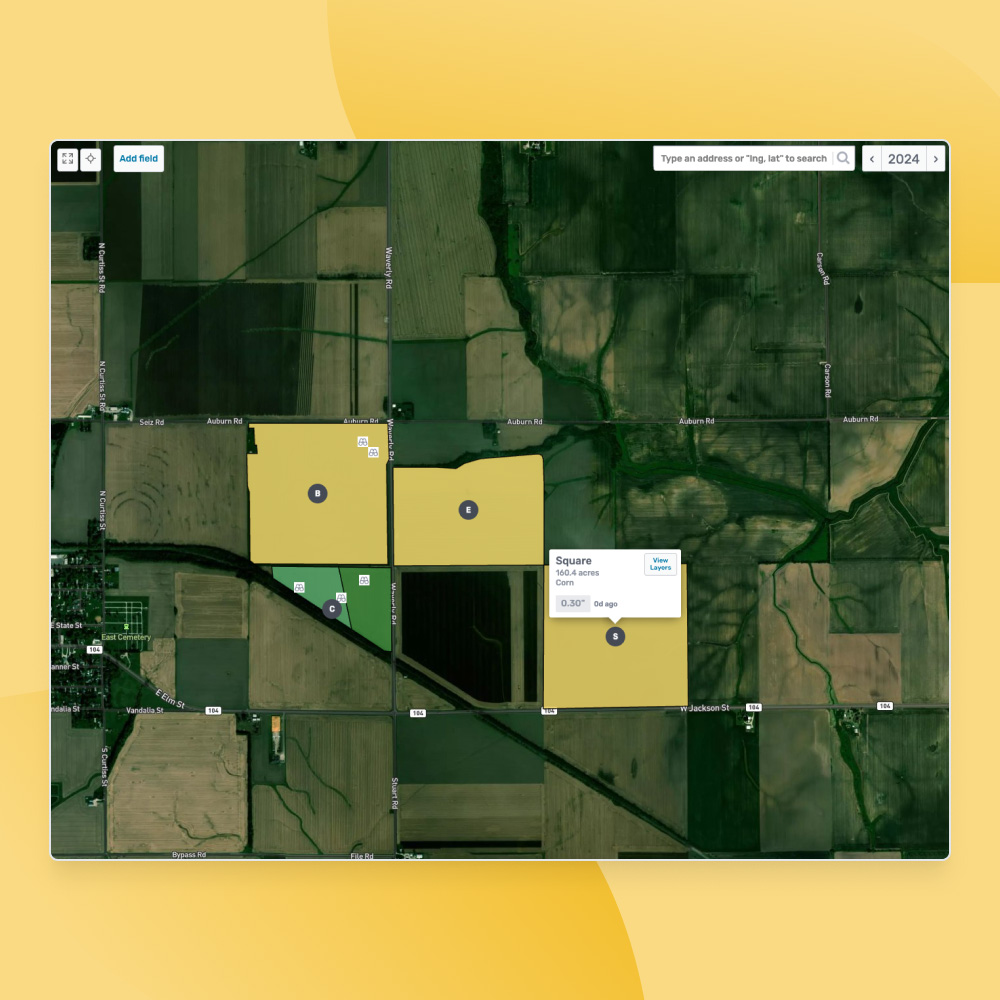
1. Map Your Fields
All plans can add fields by uploading shapefiles or selecting common land units or you can import your fields from John Deere Operations Center or Climate FieldView. Watch how to do this here.
2. Automate Entry of Activities
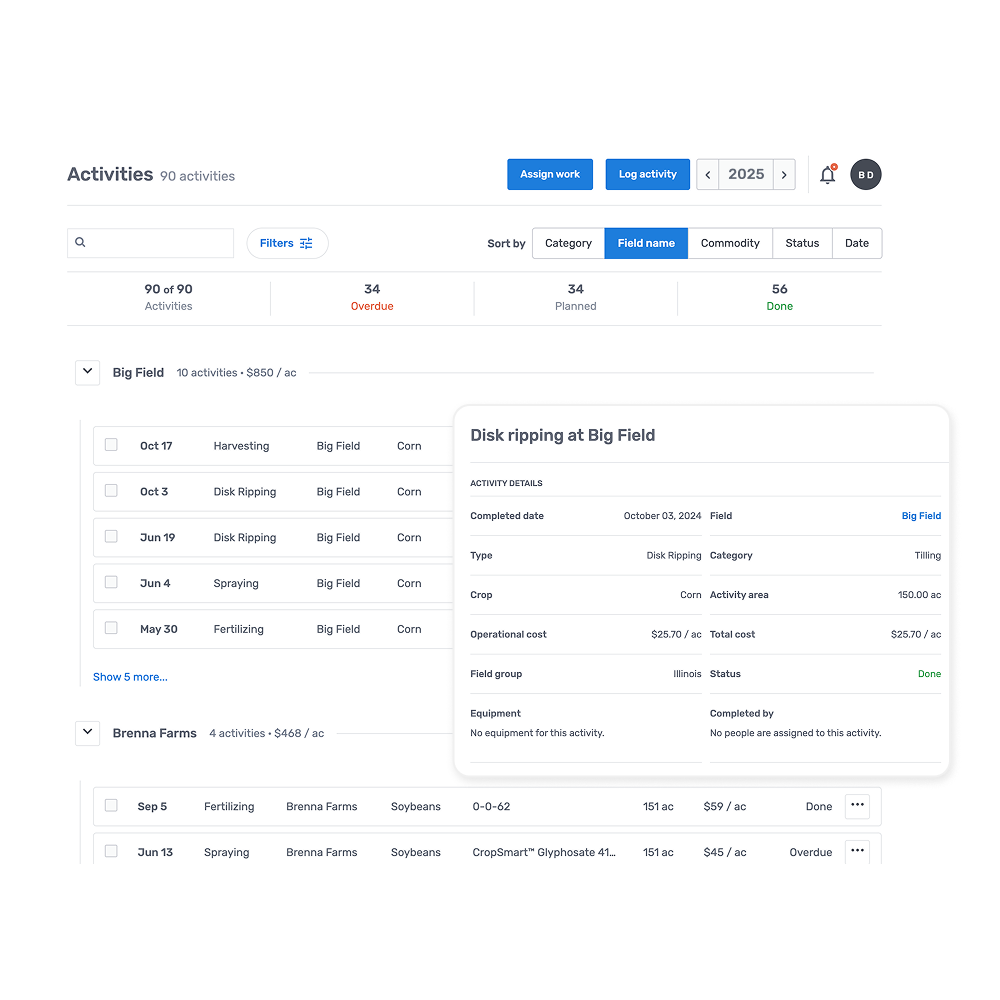
If you’re subscribed to the Essentials plan with the Machine Data Add-On, connect your Bushel account to your John Deere Operations Center or Climate FieldView account. Once connected, activities will automatically populate in Bushel based on the fieldwork completed and inputs used. When activities are updated, your P&L at the acre, field, crop, and farm level will be updated. Watch how to do this here.
3. Automate Entry of Grain Contracts
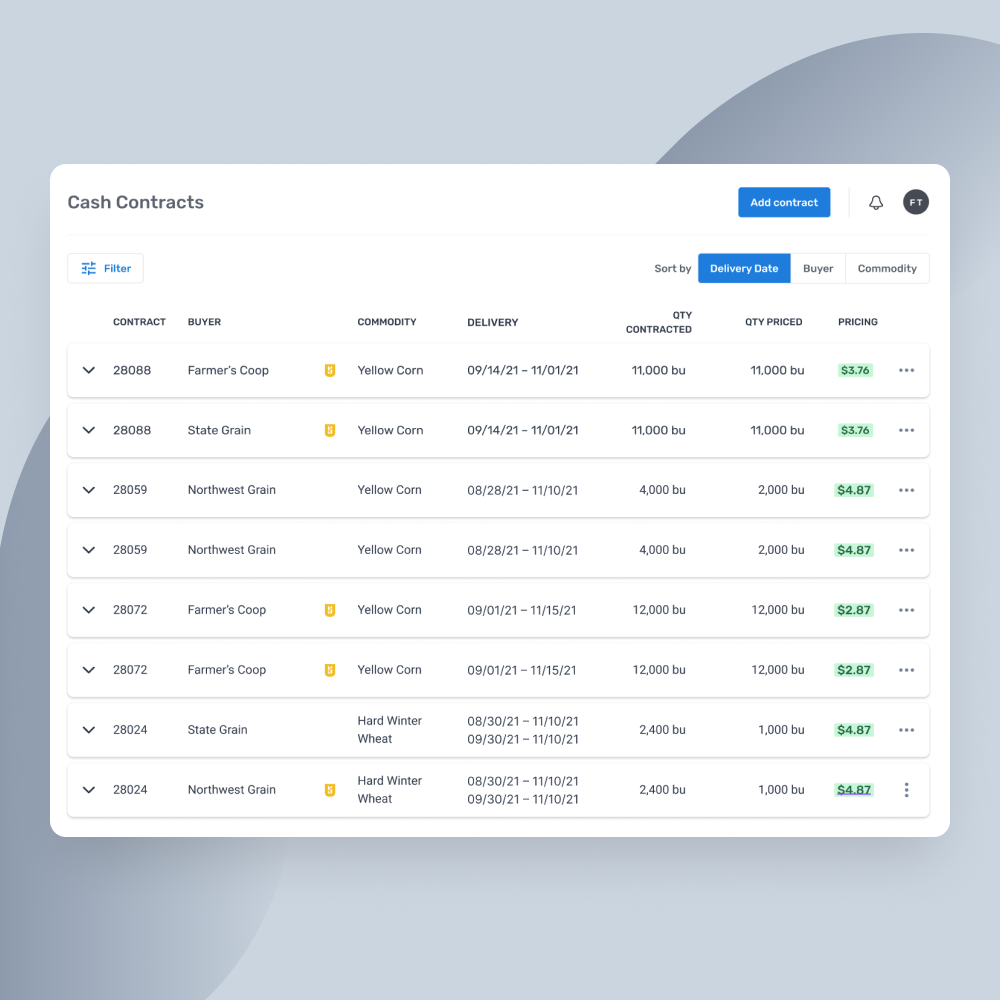
You can reduce manual entry and automate the entry of cash grain contracts by connecting your Bushel account to your accounts with any of the grain buyers in the Bushel Network. You can also manually enter, organize, view, and easily access all of your grain contracts in one convenient online location. Available in the Lite and Essentials plans. Watch more about this here.

4. Add Crops for the Crop Year
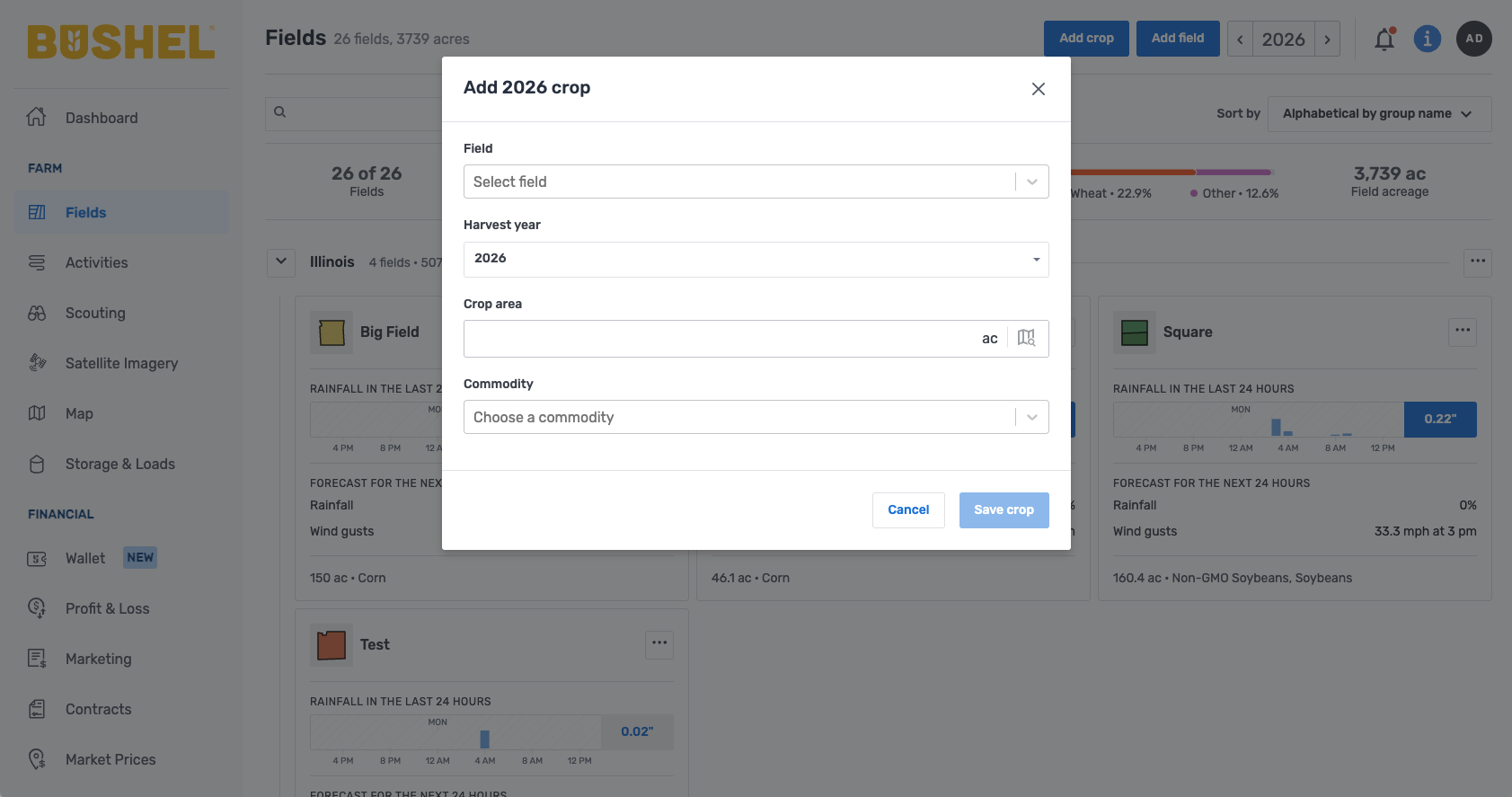
You can either add crops to fields individually or now you can add the same crop to multiple fields by clicking Add Crop on the Fields page or when using the Marketing feature of the Essentials plan. Watch more about this here.
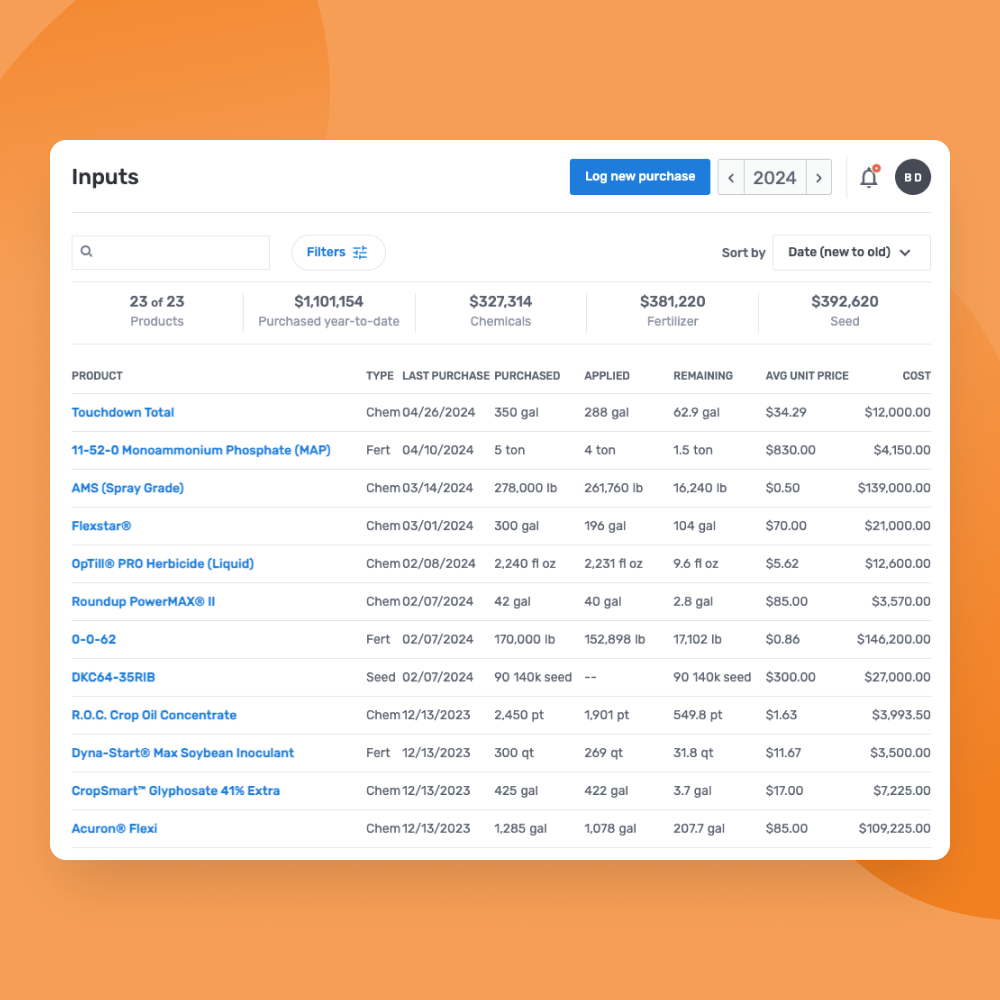
5. Log Input Purchases
To keep an accurate cost of production automatically as you log fieldwork throughout the season, be sure to log any input purchases you’ve made already for this year. You can also add saved mixes or custom inputs. Watch more about this here.
6. Share Your Account with Partners/Employees
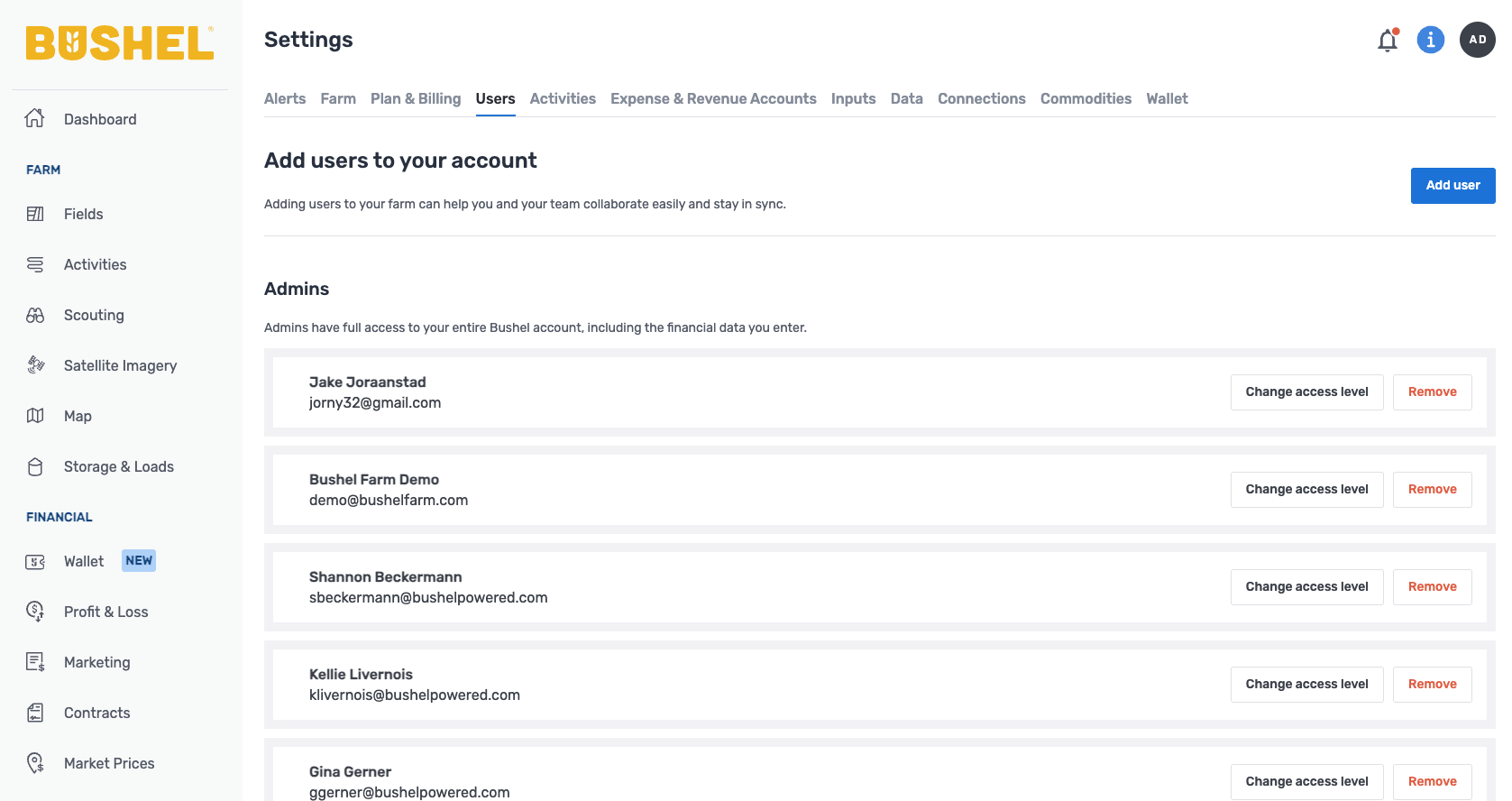
You can add people or third-party service providers to your account with different access levels to make it easier to stay on the same page with all your partners on the farm. Examples include farm managers, crop consultants, agronomists, marketing advisors, accountants, custom applicators, and more.
7. Customize Your Activity Types
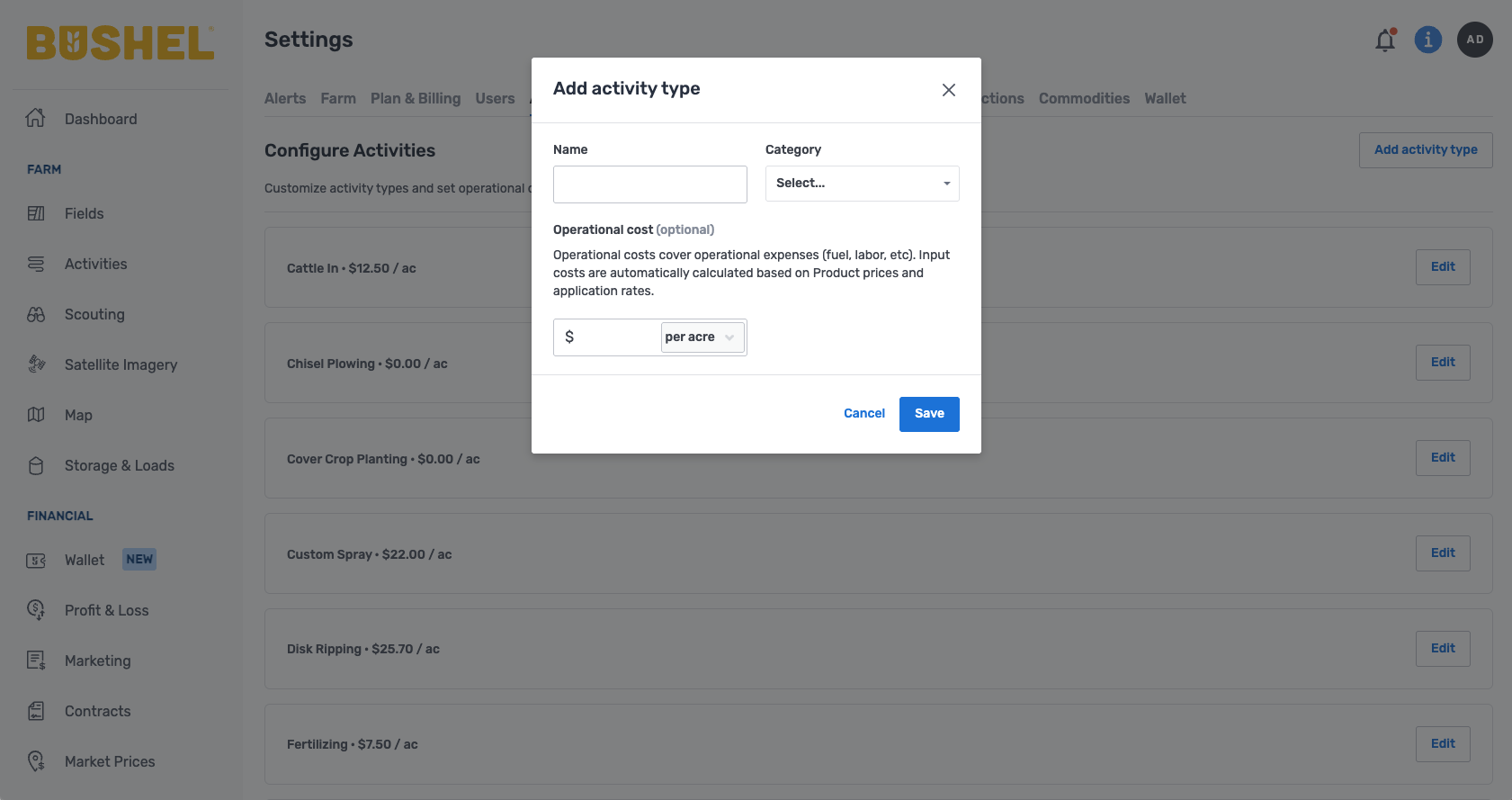
Edit the operational cost of each activity type or add new activity types to use when logging fieldwork throughout the season.
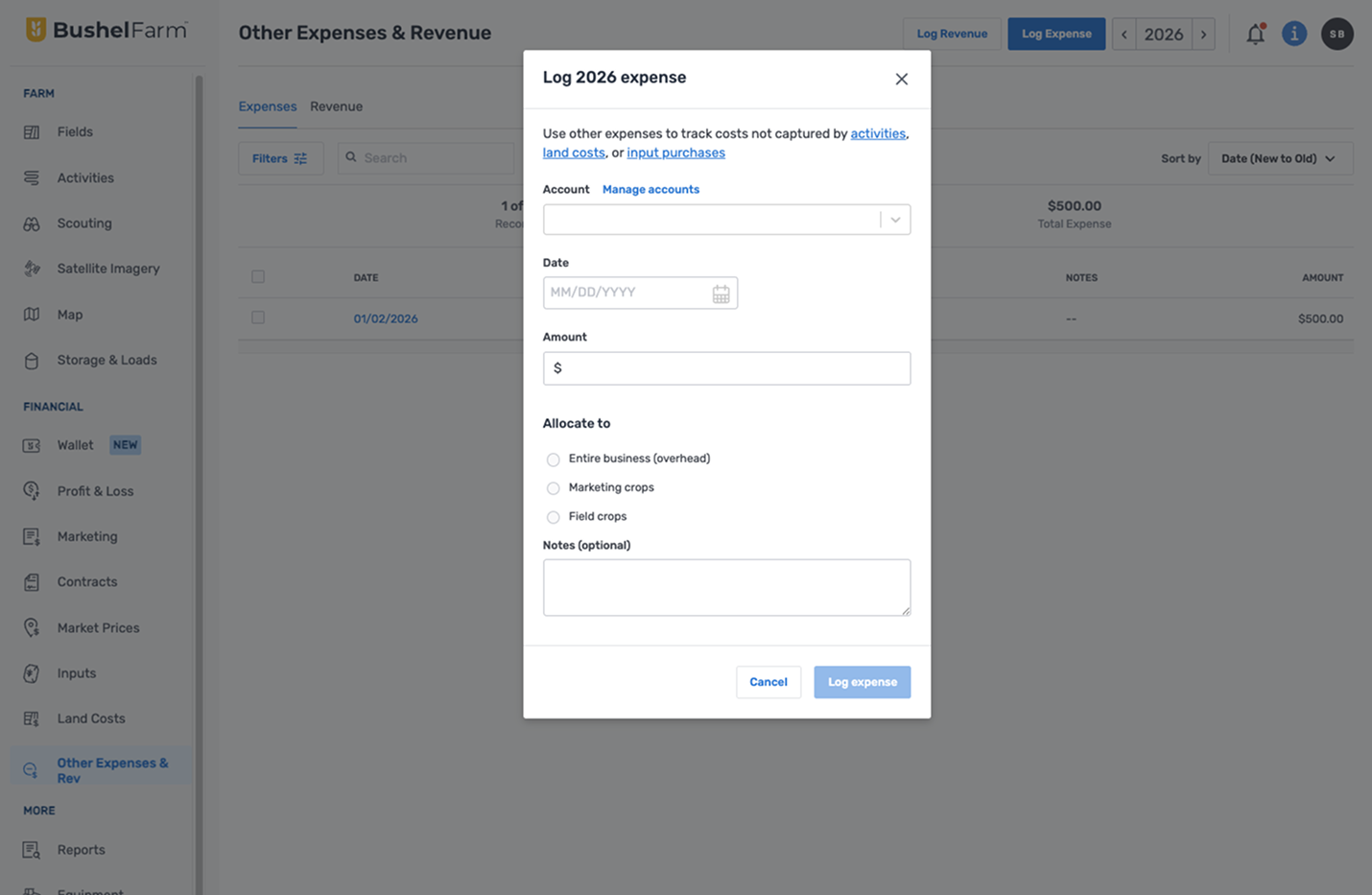
8. Set Up Other Expense & Revenue Accounts
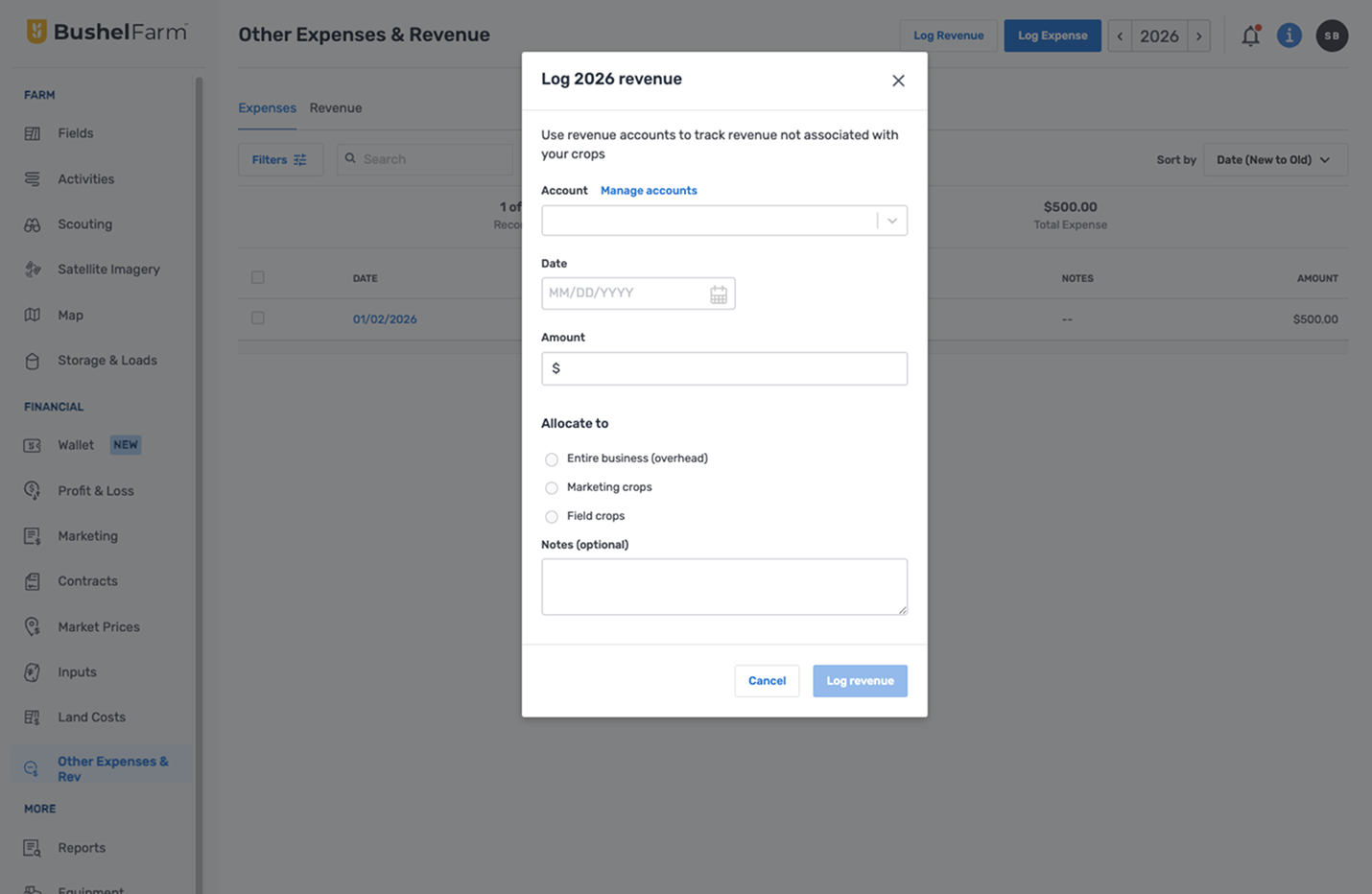
If you’re using the Essentials plan, you can add other expense and revenue accounts to keep track of costs and income outside of fieldwork and inputs. Think of these as accounts on your income statement such as crop insurance, utilities, and diesel fuel, for example. Watch more about this here.
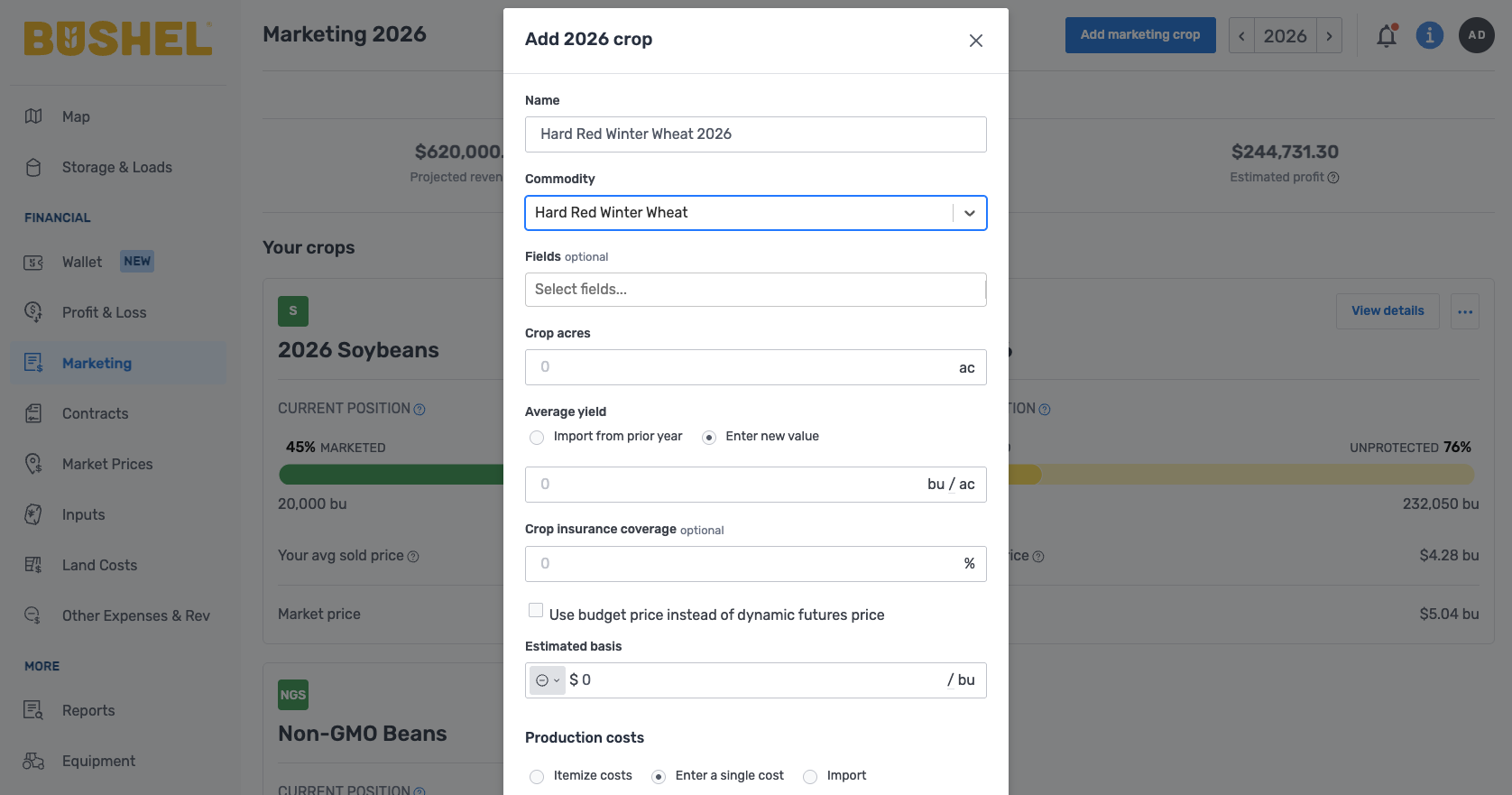
9. Set Up Crops in the Marketing Feature
If you’re using the Essentials plan, keep track of your marketing positions on a crop level by plans, keep track of your marketing positions on a crop level by setting up marketing crops. Assign marketing crops to contracts in the Contracts feature to automate your marketing position. Watch more about this here.
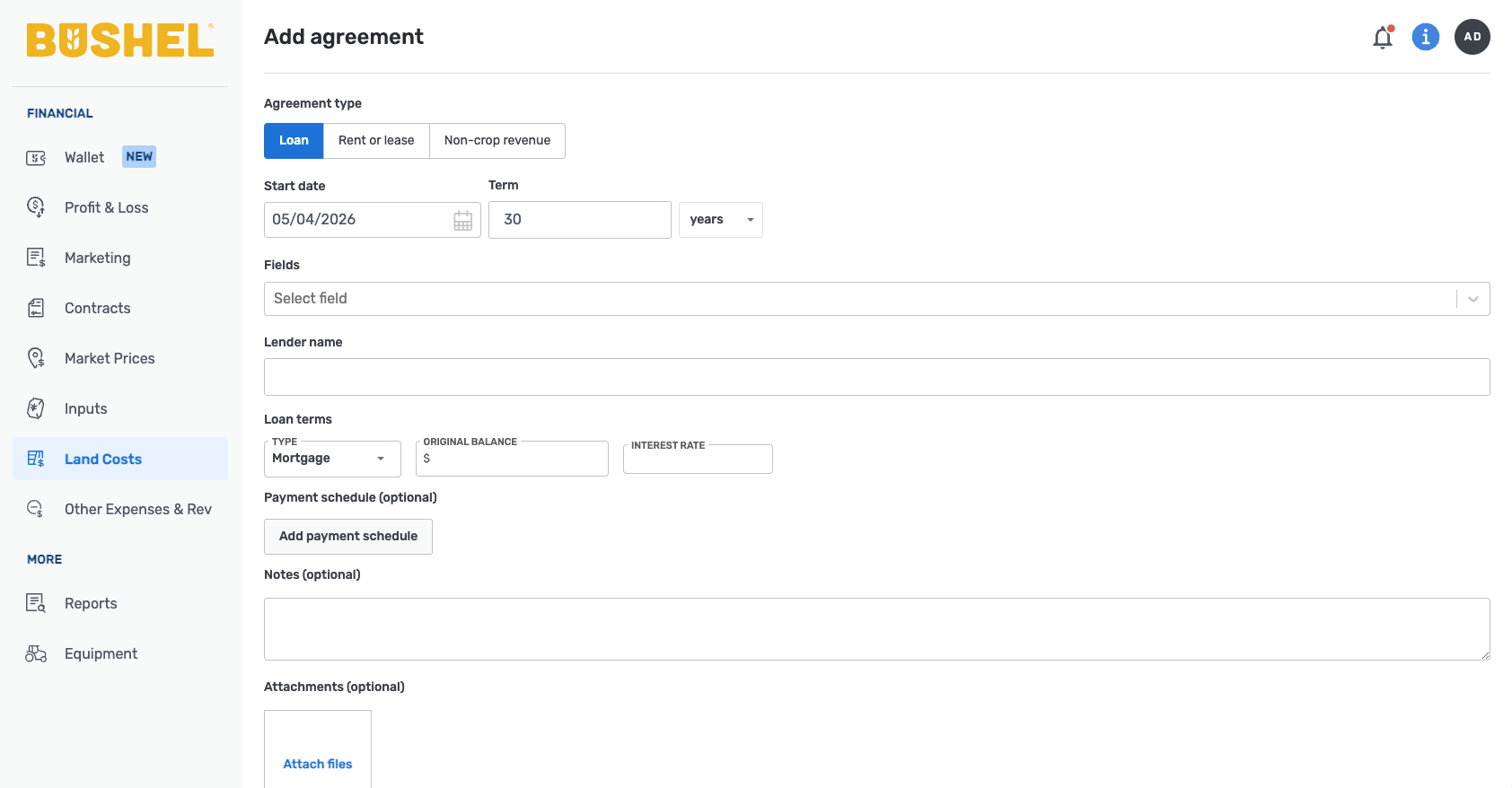
10. Enter Land Agreements
Ensure you have entered all your land agreements in the Land Costs feature, so your profit & loss statement is accurate and you can quickly generate reports, such as a Crop Share Report in the Reports section of the app. Watch more about this here.
11. Prepare to Use Bushel Farm in the Field
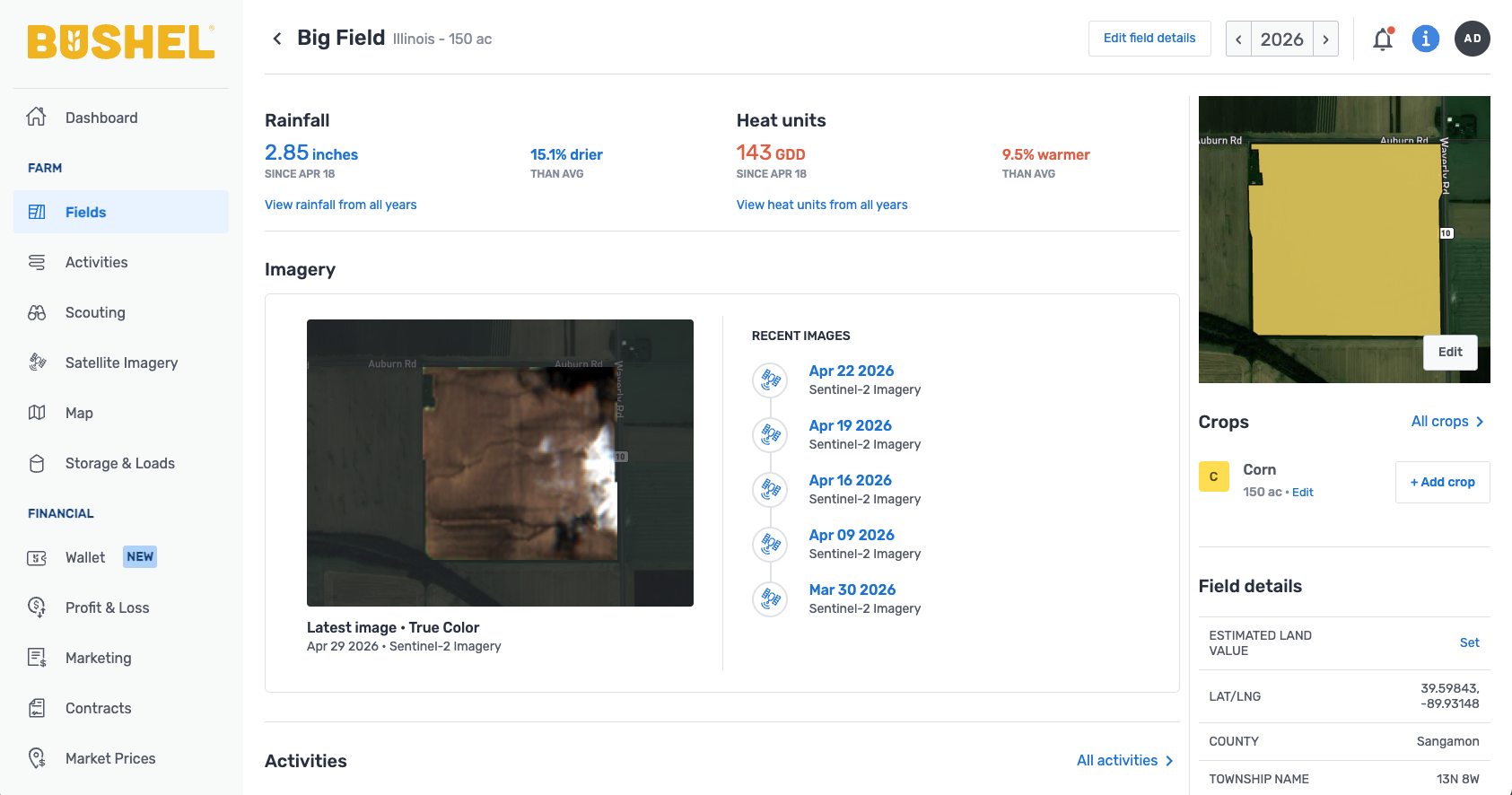
- Check out rainfall information on a field level. Farmers use this to help plan the logistics of their day. (Rainfall, Lite, and Essentials plans)
- Don’t forget to explore the rain and heat history charts. (Lite and Essentials plans)
- Check out the Satellite Imagery feature to view field-level imagery, which can help detect yield threats. (Essentials plan)
- Log geo-tagged scouting notes with pictures to keep good records and collaborate with others. (Lite and Essentials plans)
Get Help
To reference all Bushel Farm support articles, visit the Knowledge Base.
For more information about plans and pricing, click here.