


Using Bushel with SB&B
Simple steps to get started and use your account
Setting Up Your Bushel Account
Please follow the below instructions and guidelines to successfully set up your Bushel (formerly Bushel Farm) account to be used for digital recording and reporting for SB&B.
Things to have ready when setting up your account:
- Field shapefiles
- For Business Plan subscribers: Log-in credentials for John Deere Operations Center or Climate FieldView
- A list of fields with the planted crop and acreage for each (unless this is already in John Deere Operations Center or Climate FieldView)
- Seed variety names
Watch the full setup process here:
The quickest and easiest way to map fields in Bushel is to upload shapefiles. If you have field boundaries in shapefile format from other programs or the the FSA, please follow these steps to map fields in Bushel.
Here are steps to download from John Deere and upload to Bushel.
If you are subscribed to the Business plan and use John Deere Operations Center or Climate FieldView, you can connect to that account and request to have your field boundaries be mapped from there.
Please note: You are welcome to use Bushel to track all your fields, not just SB&B fields. You will have a chance to select which fields to share with SB&B.
Watch a video overview of how to add fields (using shapefiles) and crops to your Bushel account
Follow these steps to add crops to your fields. For fields that are planted for SB&B, please add the crop labeled Soybeans or Non-GMO Soybeans.Please note:
- You can track multiple crops on the same field boundary.
- If your Bushel account is connected to John Deere Operations Center or Climate FieldView, the crop should be Soybeans because those systems don’t properly map Non-GMO Soybeans.
To help report information and keep fields organized, please group fields that are planted for SB&B using these steps.
Click here to access the page in Bushel where you can choose which fields you have planted for SB&B this year.
How to Use Bushel for SB&B Reporting
Please follow the below instructions and guidelines to successfully set up your Bushel account for digital recording and reporting for SB&B.
When logging fieldwork you will select the input used. Bushel supplies a list of inputs from the CDMS database. SB&B seeds are not on that list, so please take these steps to add SB&B seeds as custom inputs.
For traceability purposes, SB&B needs fieldwork records, including planting, spraying, fertilizing, and harvesting. Please reference this support article for directions to log activities.
Activities can be logged automatically from John Deere Operations Center or Climate FieldView if you are subscribed to the Bushel Enterprise plan.
How to Get the Most From Your Complimentary Account
You have access to the Bushel Essentials plan with the following features:
- Field Mapping
- Field Attachments
- Recent Rainfall
- Rain and Heat History
- Satellite Imagery
- Scouting
- Soil Maps
- Equipment
- Activities
- Inputs
- Market Prices
- Contracts
- Marketing
- Local Prices
View cumulative, daily, and weekly rainfall amounts on a field level for up to 20 years in the past.
- In the menu, click or tap Fields.
- Click or tap the field for which you want to view rainfall and heat history.
- Click View rainfall from all years or View heat units from all years.
Watch video overview of how to view rain and heat history for your individual fields:
This feature can help keep up with the health and progress of your crops. The NDVI imagery layer shows the vegetation throughout a field. Learn more by referencing this support article.
When sorting the Activities page by field name, Bushel will show the field-level cost associated with the fieldwork done by acre (see image below). The total cost per activity is made up of operational cost and input cost. Operational costs can be adjusted here in the Activities section of the account settings. Input purchases can be logged using these steps.
Creating activities helps with cost-tracking as well as tracking work at a field level. To build the field-level cost, create activities and log input purchases:
- Click on Activities
- Click on Log Activity
- Select the type of activity
- Select the field or multiple fields the activity has or will be completed on
- Click on Input
- Search the database for the input used or add a custom input
- Add the rate per acre or in total
- Enter additional/optional details, then click Log Activity
Watch a video overview of how to calculate cost of production using activities and inputs
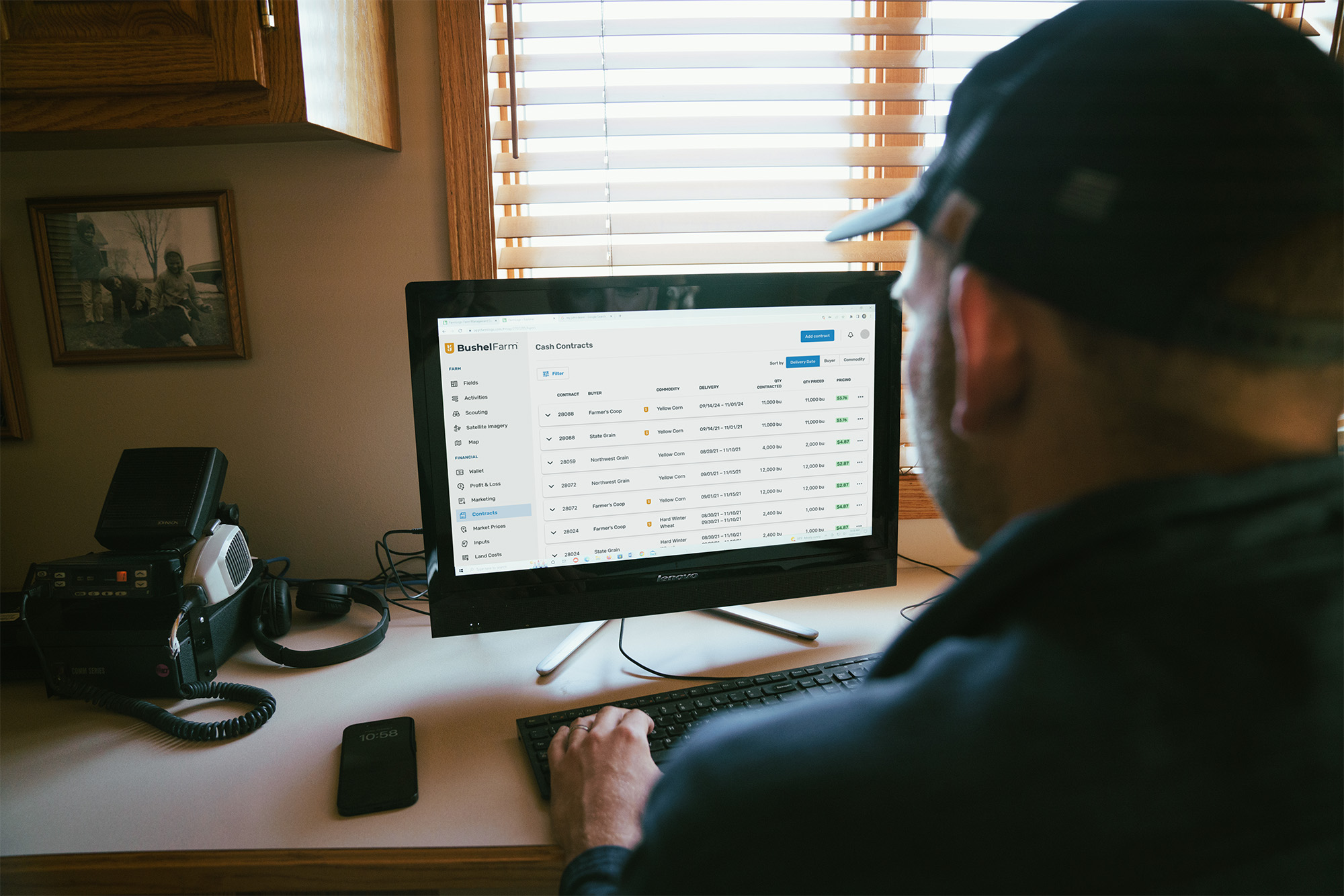
Bushel is the only farm management software that can automatically import grain contracts from over 180 buyers, saving you time that is usually spent organizing or manually entering contract details elsewhere. Learn more about syncing contracts here.
Bushel Overview Video
Get Help
To reference all Bushel support articles, visit the Knowledge Base.
If you need further assistance, don’t hesitate to contact our support team here and let them know you are associated with SB&B.